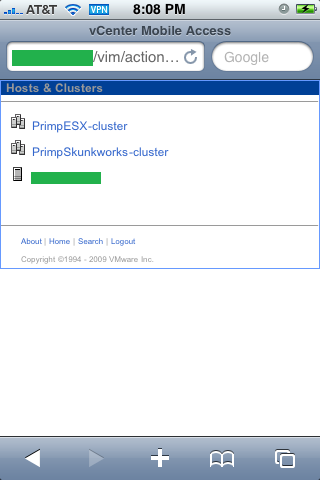
VMware vCenter Mobile Access allows you to monitor and manage VMware Infrastructure from your mobile phone with an interface that is optimized for such devices. Specifically, it allows you to search for virtual machines in your data center, migrate virtual machines from one host to another using VMotion, execute recovery plans using VMware Site Recovery Manager, access Scheduled Tasks, Alarms and Events, and much more...
Friday, 20 March 2009
VMware vCenter Mobile Access Technology Preview
Thursday, 19 March 2009
How to set up an email event trigger
In the upcoming version of vCenter, the Alarm section is greatly improved. You can create alarm rules which are triggered when an event like powering on a Virtual Machine occurs. Event triggers monitor events that occur on managed objects, vCenter Server, and the License Server. An event is recorded for any action that is of interest to vCenter Server.
I created a new alarm that sends me an email when someone reconfigures one of the virtual machines. As a test, I removed the USB controller from a virtual machine and instantly I received an email from my vCenter Server.
[VMware vCenter - Alarm Test Event] Reconfigured Connection on 192.168.178.251 in NTPRO
Target: Connection
Previous Status: Gray
New Status: Red
Alarm Definition:
([Event alarm expression: VM reconfigured; Status = Red])
Event details:
Reconfigured Connection on 192.168.178.251 in NTPRO

Wednesday, 18 March 2009
Using vNetwork Distributed Switches and dvPort Groups
You can use vCenter Server to create abstracted network devices called vNetwork Distributed Switches. A vNetwork Distributed Switch functions like a single virtual switch across all associated hosts. This allows virtual machines to maintain consistent network configuration as they migrate across multiple hosts. Like a virtual switch, each vNetwork Distributed Switch is a network hub that virtual machines can use. A vNetwork Distributed Switch can route traffic internally between virtual machines or link to an external network by connecting to physical Ethernet adapters, also known as uplink adapters.
Each vNetwork Distributed Switch can also have one or more dvPort groups assigned to it. dvPort groups aggregate multiple ports under a common configuration and provide a stable anchor point for virtual machines connecting to labeled networks. Each dvPort group is identified by a network label, which is unique to the current datacenter. A VLAN ID, which restricts port group traffic to a logical Ethernet segment within the physical network, is optional.

Hyper9 Introduces Alert & Monitoring Applet
This applet makes it easier and more affordable for administrators to monitor virtual environments from inside the guest and across their virtual infrastructure. The add-on applet, as long as the core software is operational, is free to all Hyper9 trial download users and customers, and can be downloaded at: http://store.hyper9.com/product-add-ons.
The applet allows administrators to monitor and set up alerts against any facet/data point in their virtual environment. More specifically, it provides administrators with the ability to:
• Proactively manage and solve infrastructure challenges;
• Monitor configurations and issue alerts when configurations drift from a standard template; and
• Track, monitor and set up alerts for: new virtual machines, VMs missing important hotfixes, VMotion activity and more.
New Alarm Actions
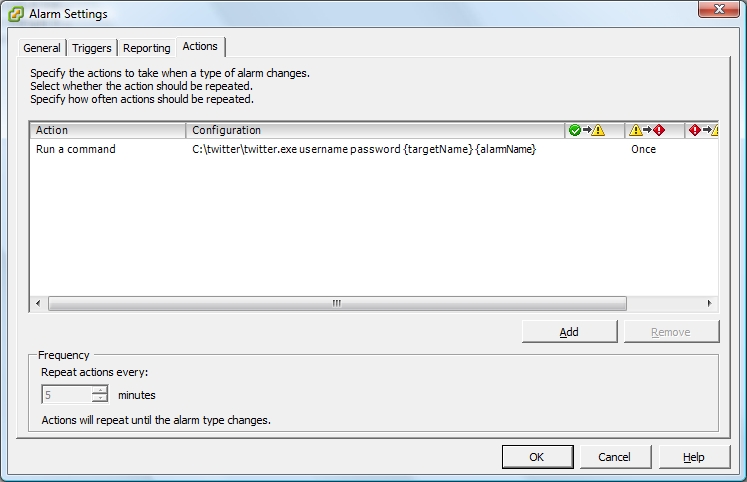
An alarm action is an operation that occurs in response to a condition, state, or event that causes an alarm to trigger.
In the new version, VMware provides a list of preconfigured actions you can associate with an alarm. For example, alarm actions for hosts include rebooting the host and putting the host in maintenance mode. Alarm actions for virtual machines include powering on, powering off, and suspending the virtual machine.
Although the action are preconfigured, you must manually set up certain aspects of the action, such as having the action occur when a warning is triggered or when an alert is triggered, and whether to repeat the action. You can configure alarm actions to repeat in the following ways:
- At a specified time interval after an alarm triggers. For example, if an alarm triggers because a physical host is not responding, you can have an email message sent every 10 minutes until the host is returned to a connected state or until the alarm trigger is suppressed.
- Until the alarm is explicitly acknowledged by an administrator. When you acknowledge an alarm, the alarm actions are suppressed. The alarm trigger is not reset; it remains in its current state until the triggering condition, state, or event is no longer valid.
Some alarm actions, such as sending notification emails or traps, and running a script, require additional configuration.
Acknowledge Triggered Alarms
When you acknowledge a triggered alarm (in the new version), you suppress the alarm actions from occurring. You can configure alarm actions to repeat Until the alarm is explicitly acknowledged by an administrator. After acknowledging an alarm, the alarm actions are suppressed. The alarm trigger is not reset; it remains in its current state until the triggering condition, state, or event is no longer valid.

Tuesday, 17 March 2009
Tales from the classroom
Scott Vessey, a fellow VMware Certified Instructor started his own blog at http://vmwaretraining.blogspot.com. Scott is Lead Instructor for VMware at Global Knowledge UK and has set a number of goals for this blog.
- To publish news around training and certification from VMware.
- To publish news around VMware products, including eco-system partners.
- Sharing information learned at events and conferences.
- Tales from the classroom
Managing VMware vApp
You can use the next version as a platform for running applications, in addition to using it as a platform for running virtual machines. The applications can be packaged to run directly on top of the next version. The format of how the applications are packaged and managed is called VMware vApp.vApp has the same basic operations as a virtual machine, but can actually contain multiple virtual machines or multiple services. In the VI client, vApp is both represented in the Host and Clusters view and the VM and Template view. Each view has a specific summary page with the current status of the service and relevant summary information, as well as operations on the service. The distribution format for vApp is OVF. Importing and exporting a vApp is performed as you would import or export a virtual appliance.
Zoom In or Out of the Map View
New alarm definitions in the next version
The list with default alarm definitions in the next version of ESX server has grown tremendously. As you can see in the image the list contains a a lot of new trigger objects. You can monitor the current condition or state of virtual machines, hosts, and datastores. This includes power states, connection states, and performance metrics, such as CPU and disk usage. To set alarms on other objects in the inventory, including datacenters, clusters, resource pools, and networking objects, use event triggers. The Event Triggers monitors events that occur in response to operations occurring with any managed object in the inventory, the vCenter Server system, or the license server. For example, an event is recorded each time a virtual machine is cloned, created, deleted, deployed, and migrated.
In the Alarm Settings dialog box, use the Triggers tab to add, edit, or remove alarm triggers. The procedure for setting up triggers depends on whether you are setting the trigger for a condition or state or for an event. What’s new... you can set a condition length.
Desktop Central | Free Windows Tools
Desktop Central provides a set of free Windows tools that Windows Administrators might require on a day-to-day basis.
- Remote Task Manager Tool
- Wake On LAN Tool
- Software Inventory Tool
- Remote Command Prompt
- GPO Update Tool
- Shutdown / Restart Tool
- Join / Unjoin Computer Tool
- Currently Logged On User
- Hard Disk Space Monitor
- Local User/Group List
- Network Share Browser
VMware Products Coming in 2009
Sunday, 15 March 2009
The H9Labs Search Bar Plug-in for VI3
Schley Andrew Kutz has released a new VI3 plug-in via H9Labs called the Search Bar Plug-in for VI3. The plug-in adds search capabilities to VI3 clients through an integrated search bar in the upper-left hand corner of the client. This functionality is present by default in VMware’s recently announced vSphere4, but severely lacking in VI3. Andrew, along with his CTO, Dave McCrory (who gave him great advice on the plug-in and produced the H9Labs graphics for it), figured they would simply back port the search capabilities from vSphere into VI3.
Let’s wait and see what Andrew’s next invention looks like, I received a personal note. :-)
Eric, Good job on the Twitter plug-in. I was (am) working on something similar.
Extend your IT Reach with Mobile Admin 4.2
Rove, a developer of network administration software that provides IT administrators mobile management of their IT systems and infrastructure will unveil the newest version of their flagship product next Monday. Mobile Admin 4.2 will feature full support for VMware vCenter, so users can check and administer their VMware infrastructure from their BlackBerry.
Mobile Admin enables the administration of your IT environment via mobile devices. Once the Mobile Admin Server is deployed within your network, your users can perform a wide range of administrative tasks from a variety of mobile devices, including BlackBerry, Windows Mobile and the Web Interface.
Mobile Admin supports management of the VMware Virtual Center.
Users can check and administer their VMware infrastructure on a global basis from a BlackBerry smartphone, Windows Mobile phone or a web interface.
Users can perform other VMware administrative tasks such as retrieving a running copy of a failed server from a virtual machine, or viewing VMware ESX server status information remotely when a problem occurs.
Note: Microsoft Powershell and the VMware VI Toolkit (for Windows) must be installed on the same system as Mobile Admin in order to manage VI servers with Mobile Admin.
Saturday, 14 March 2009
StorageVirtualAppliance.com | Shared Storage For VMware ESX
Storage Virtual Appliances unlock the resources of the ESX server and provide a virtual SAN that enables datastores to be shared. By leveraging an available virtual machine, SVAs provide a shared storage environment without having to install a complex shared storage system.

Storage Virtual Appliance (SVA)
Storage appliance software running under VMware ESX® as a virtual machine. SVA takes control of and virtualizes Direct Attached Storage (DAS), for example internal disk drives and/or externally attached array.
- Presents it to VMware ESX over iSCSI as a virtual SAN .
- This fully enables all features which normally require an expensive external SAN High Availability and VMotion.
- Dramatically lowers the cost of deploying a server virtualization environment.
- Traditionally you would purchase 2-3 physical servers, then have expense of purchasing SAN storage.
- Now you can have a SAN using the server’s internal storage!
Friday, 13 March 2009
On my way to the VCDX Design Exam (beta)
previous page
(Page 2 of 4, totaling 51 entries)
next page