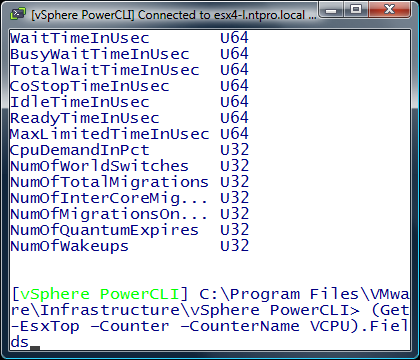
 With the latest release of PowerCLI (4.1.1) VMware has introduced a real cool new commandlet.
Get-EsxTop exposes esxtop functionality. The default parameter set is CounterValues. The Counter parameter filters the specified statistics. To retrieve all available counters, use the CounterInfo parameter set. The properties of each counter are returned through the Fields property (an array) of the CounterInfo output object. You can also retrieve stats topologies using the TopogyInfo parameter set. This information contains either inventory data that does not change or a counter instance structure describing the relationship between different counter instances.
Thursday, December 2. 2010
New vSphere PowerCLI Cmdlet - Get-EsxTop
Monday, November 22. 2010
PowerGUI – HP Virtual Connect Power Pack
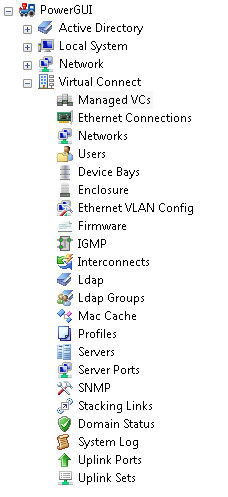 This PowerPack extends PowerGUI with a set of folders, nodes, links and actions that allow you to manage HP Virtual Connect Modules used in the c class blade chassis. The powerpack utilises the ssh command line tool plink to administer the virtual connect remotely and securely. The thick client experience gives an administrator more power to customise day-to-day tasks when compared with the standard web interface. Using the methods demonstrated in this pack, an administrator can customise actions to suit their environment and ease the burden around supporting Vitrual Connect Domains.
http://www.powergui.org/entry.jspa?externalID=3047&categoryID=389
Friday, October 1. 2010
vSphere 4.1 PowerCLI Administration Guide
The vSphere PowerCLI Administration Guide provides information about using the VMware vSphere PowerCLI cmdlets set that ships with vSphere PowerCLI for managing, monitoring, automating, and handling life‐cycle operations for VMware vSphere components—virtual machines, datacenters, storage, networks, and so on.
 It's is intended for anyone who needs to use vSphere PowerCLI. The information in the PDF is written for administrators who are familiar with virtual machine technology and Windows PowerShell.
There are two categories of users for vSphere PowerCLI: Basic administrators can use PowerShell commands included in vSphere PowerCLI to manage their VMware infrastructure from the command line and Advanced administrators can develop PowerShell scripts that may be reused by other administrators or integrated into other applications.
Friday, June 4. 2010
The vEcoShell is out of beta
Scott Herold is happy to announce the release of the vEcoShell 1.2.6. It’s out of beta and officially has been deemed as a stable release. The list of features is quite limited, but the biggest change is multi session management which makes copying and pasting from the web and PS1 files possible. Under the hood every single script in the function library was re-written from scratch. Scott also has transferred the community homepage of The vEcoShell Initiative to Vizioncore’s vCommunity. 
What's New with 1.2.6?
•Completely rewritten PowerPack to support VMware PowerCLU 4.0 Update 1 and its ability to manage connections to multiple $viServer objects.
•Ability to copy and paste code from "PowerShell Code" tab directly into standalone PS1 files (Will still need to Add-PSSnapin and Connect-VIServer for script to function).
•Ability to copy and paste code snippets from the internet and they will work without needing to add the $managedHost.connection code everywhere.
Download the latest version of vEcoShell and additional PowerPacks here.
 Scott Herold about the GA: I am happy to announce that the 1.2.6 version of vEcoShell is now available on the Downloads Page. This update brings us into full compatibility with VMware PowerCLI 4.0 U1. In addition, we have decided to remove the product from beta and have provided our first stable release , which has been rigourously tested by the Vizioncore QC team. vEcoShell will remain Freeware, and continue to have a community support policy. The major difference in 1.2.6 is in how connections to multiple vCenter or ESX Servers are managed. In previous versions, vEcoShell maintained all session management and required custom code in nearly all of it's scripts to function properly. These scripts could not run externally to vEcoShell, so the PowerShell Code tab provided limited value. With the 1.2.6 release, vEcoShell now lets PowerCLI manage all connections. This means we were able to remove all custom code from our script library. Nearly every script that is in vEcoShell today can be run externally. Simply copy a code block from the "PowerShell Code"...
Sunday, May 16. 2010
/n software PowerShell Server is now part of PowerShell Inside
PowerShell Server has been rebranded as PowerShell SSH Server and has moved to a new home as a member of the 'PowerShell Inside' product line (www.powershellinside.com). In addition, the new PowerShell SSH Server is now completely FREE to use when run as a desktop application.
PowerShell Inside is a new and separate division of /n software focused exclusively in PowerShell technologies. PowerShell Inside products make technologies more customizable by enhancing them with PowerShell scripting. /n software has built these tools to provide an easy way to enhance and integrate applications without the complexity or expense of custom development. With PowerShell you get comprehensive access to the power of the .NET Framework in an easy to use interface that is tailor-made to help you get more work done, faster.
The following PowerShell Inside products are currently available:
• PowerShell ASP - Build dynamic Web content with PowerShell.
• PowerShell Panel - A PowerShell powered ASP.NET Panel control.
 • PowerShell SSH Server - Access PowerShell remotely from SSH terminals.
• PowerShell Web Part - Extend SharePoint portals with dynamic content.
• PowerShell Data Provider - Databind to PowerShell, like you Databind to SQL.
• PowerShell Office Add-In - Automate Outlook with PowerShell scripting.
• PowerShell SSH Components - Components for PowerShell SSH Server Access.
• PowerShell BizTalk Adapter - Automate BizTalk and simplify orchestrations.
• PowerShell SSIS Task - Automate SQL Server and simplify SSIS Workflows.
• PowerShell Workflow Activity - Simplify WF Workflows with PowerShell.
PowerShell Inside is a new and separate division of /n software focused exclusively in PowerShell technologies. PowerShell Inside products make technologies more customizable by enhancing them with PowerShell scripting. /n software has built these tools to provide an easy way to enhance and integrate applications without the complexity or expense of custom development. With PowerShell you get comprehensive access to the power of the .NET Framework in an easy to use interface that is tailor-made to help you get more work done, faster.
The following PowerShell Inside products are currently available:
• PowerShell ASP - Build dynamic Web content with PowerShell.
• PowerShell Panel - A PowerShell powered ASP.NET Panel control.
• PowerShell SSH Server - Access PowerShell remotely from SSH terminals.• PowerShell Web Part - Extend SharePoint portals with dynamic content.
• PowerShell Data Provider - Databind to PowerShell, like you Databind to SQL.
• PowerShell Office Add-In - Automate Outlook with PowerShell scripting.
• PowerShell SSH Components - Components for PowerShell SSH Server Access.
• PowerShell BizTalk Adapter - Automate BizTalk and simplify orchestrations.
• PowerShell SSIS Task - Automate SQL Server and simplify SSIS Workflows.
• PowerShell Workflow Activity - Simplify WF Workflows with PowerShell.
Monday, April 12. 2010
The VESI – Getting it up and running by Arnim van Lieshout
Arnim van Lieshout over at van-lieshout.com has created a great blog post with all the steps involved in completing the setup of the PowerCLI/The VESI environment:
1.Installation of Windows PowerShell
2.Installation of VMware PowerCLI
3.Installation of The Virtualization EcoShell
 On April 8th we had a very good DutchVMUG meeting, which was totally dedicated to using PowerCLI and The VESI (Virtualization EcoShell Initiative). Although setting up the environment is straightforward, I wanted to do a small write-up which leads you through the install process and includes all download links needed.
http://www.van-lieshout.com/2010/04/the-vesi-getting-it-up-and-running/
 (Page 2 of 23, totaling 135 entries)