vReplicator 2.5 provides some excellent upgraded features to allow customers to leverage software-based replication and virtualization to drive their High Availability and Disaster Recovery strategies. vReplicator 2.5 offers several new major features that support these objectives, including the following:
• VSS (Microsoft Volume Shadow Copy Service) Support to enable quiescing of supported databases to ensure transactionally consistent image backups
• Two Types of Replication: Differential, which allows customers to backup all the changed data since the last full back up, and Hybrid, to allow customers to schedule shorter replication intervals by backing up only the data that has changed from the last interval backup
• Replication of VMs to Multiple Destinations, which allows a company to accomplish multiple objectives for High Availability and Disaster Recovery
• Ability to Export Reports in Adobe® PDF, XML or Microsoft® Excel formats allowing data to be imported into third-party reporting tools
• Skipping VMDKs, which allows skipping of non-essential disks for faster replication passes
The result of this latest round of upgrades is that vReplicator 2.5 is now faster than ever – up to 10x speed improvements in the typical environment. The new features of vReplicator 2.5 will be outlined in detail during Vizioncore’s vReplicator Overview Webinar on July 3, 2008.
Friday, 13 June 2008
vReplicator 2.5 is here
Russ Naples new SVP of product development
RUSS NAPLES, CITRIX VETERAN, JOINS VIZIONCORE AS SENIOR VICE PRESIDENT OF PRODUCT DEVELOPMENT
Vizioncore is pleased to announce that Russ Naples is the new senior vice president of product development reporting into Vizioncore President and Chief Operating Officer Chris Akerberg effective immediately.
Prior to joining Vizioncore, Naples spent 13 years in increasingly important product development roles at Citrix Systems, beginning as a director in testing and rising to vice president of product development for the company. Before Citrix, Naples served as project lead in General Electric’s Systems Integration, Test and Quality Department and has experience teaching management science courses at the university level.
Naples holds a Master’s in Business Administration from Chapman University in addition to a Bachelor’s Degree in Mechanical Engineering from the Rochester Institute of Technology, and has served on several university advisory boards related to engineering and computer science.
Wednesday, 11 June 2008
VMware Stage Manager Now Available
VMware Stage Manager, a break-through product for delivering applications from staging to production is now generally available. VMware Stage Manager solves the problem of server sprawl, configuration drift, and repetitive system testing in pre-production by running IT services and business applications as virtual machine configurations that can be easily transitioned through the release process. VMware Stage Manager allows IT to roll out new and updated applications into production more quickly, avoid the risk of unplanned downtime, and accelerate change requests to production systems.
VMware Stage Manager is available for VMware Infrastructure 3 Standard or Enterprise and can be purchased as part of the VMware Management and Automation and IT Service Delivery bundles, or a-la-carte.
First benchmarks with 10 GigE and VMware
Christoph over at 21st century storage has written a good article about 10 GigE. Here are some quick performance results from VMware servers with 10 Gigabit Ethernet cards (from Sun with an Intel 82598 controller. The servers were Sun X4150 with Dual-Quadcore processors. I fired up two test VMs with Suse Linux Enterprise Desktop 10 (64 bit) and used netperf to measure TCP bandwidth between them (the exact command used was netperf -H <target ip> -t TCP_STREAM -C -c -l 60 -f M).
Generally this is exactly what we expected: to be able to provide good performance to many virtual servers which do network and/or disk-I/O only periodically without overprovisioning the whole infrastructure.

At the moment there is exactly one dual-port 10 GigE card in every VMware server and there are two physical connections to two different switches - a much cleaner setup than the 12 (!) GigE interfaces per server we had before. Via Arne Fokkema over at ICT-Freak.
Tuesday, 10 June 2008
VMware Thinapp 4 review
Sven Huisman is a Technical consultant working for QNH Infrastructure located in Zeist, the Netherlands. Virtualization is his main interest. On this blog Virtualfuture he will write about things he finds on the internet, events that he visits and everything else as long as it is about (or at least related to) virtualization. He has written a nice review about the upcoming VMware ThinApp 4.
After registering for the release candidate, I downloaded the installer. While downloading the installer (only 7 MB) I had plenty of time reading the manual
. Before you begin using this product, you might want to ask, what is Thinapp?
Monday, 9 June 2008
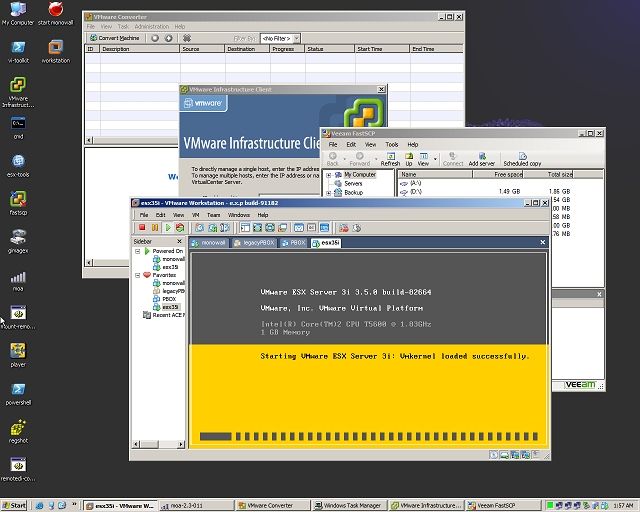
Finally I can start a VM in ESX 3.5 on WS 6.5
The beta 2 of VMware Workstation will contain a permanent fix for this problem but until then you can start a Virtual Machine running in ESX 3.5 hosted on Workstation 6.5. The only thing you have to do is minimize the resources.
From the ESX or VC client, highlight the VM and select > Edit virtual machine settings
Select Resources tab
Un-check Unlimited in the right pane and lower Mhz count to 700
Select Advanced CPU in the left pane
Under Scheduling Affinity in the right pane > Select Run on processor(s):
Check "0"
Click OK to close VM edit window
Boot VM
I'll say this much - this isn't a great fix. Although it does allow for additional testing, VM performance is dismal at a minimum. I'm going to play with MHz and Affinity settings to see if I can get better results.
Thursday, 5 June 2008
Funny video from from Stratus Technologies
Finally a video explaining virtualization in a way even my mother in law can understand it. ![]()
Wednesday, 4 June 2008
ESX 3.5 Round Robin Load Balancing
Damin started an interesting discussion about ESX 3.5 Round Robin Load Balancing at the VMware Technology Network. He is experimenting with the Wasabi Systems iSCSI Target.
I just wanted to report back on my success using Round Robin Multipath Load Balancing for Vmware ESX 3.5. My production SAN is running on the Wasabi Systems iSCSI Target. I'm very happy w/ the results of the Wasabi Systems software. After about a month and a half of pretty intense work and testing w/ the Wasabi developers, I've got Multipath I/O w/ Round Robin Load balancing working at a production stable level. Along the way, I managed to identify a few issues w/ Wasabi that resulted in a few driver updates and some patches to their iSCSI target that solved some issues that I've had. I am currently running a specially compiled Beta (v4.0.2 **Pre-Release** BETA5-N2NET-4) that has some changes in the way that they handle SCSI reservation conflicts. With those changes, and the updated drivers I can get sustained reads and writes of 180 MB / second using two NICs.
Tuesday, 3 June 2008
Using the VI Toolkit to add ESX to VC
Carter Shanklin over at the VI PowerShell Blog created another great Excel sheet with an integrated PowerShell script. If an ESX host you want to manage doesn't appear in VirtualCenter, you need to add it. This is a bit tricker than reconnecting since there's no inventory in VirtualCenter to tell you the IP addresses of all the hosts you use, and you also need to know a host's password in order to add it. This is another case where entering things in a spreadsheet can really speed things up. He made just such a spreadsheet, and here's a video of him using it.
Attaching lots of VMware ESX hosts to VMware VirtualCenter. from Carter Shanklin on Vimeo.
Monday, 2 June 2008
Convert your disks into the thin format with the VI-Client
Is it possible to make your VMDK’s thin with the VI-Client? Just figured out how to create a thin grow able disk with the VI-Client. I created a normal virtual machine with a default disk and installed Windows 2003 as a guest. I converted the VM to a template with a thin disk. I copied both the VMDK files to another empty VM without any disk. After that I attached the thin template disks and started the VM. In the guest OS I can see the original size but the VMDK stays small. I didn’t had the time to test it any futher and haven’t seen it grow. You can also use the command line :
vmkfstools -i /vmfs/volumes/vmfs4all/Eric/Sloof_disk.vmdk -d thin /vmfs/volumes/vmfs4all/Eric/Sloof_disk.vmdk
previous page
(Page 2 of 2, totaling 26 entries)