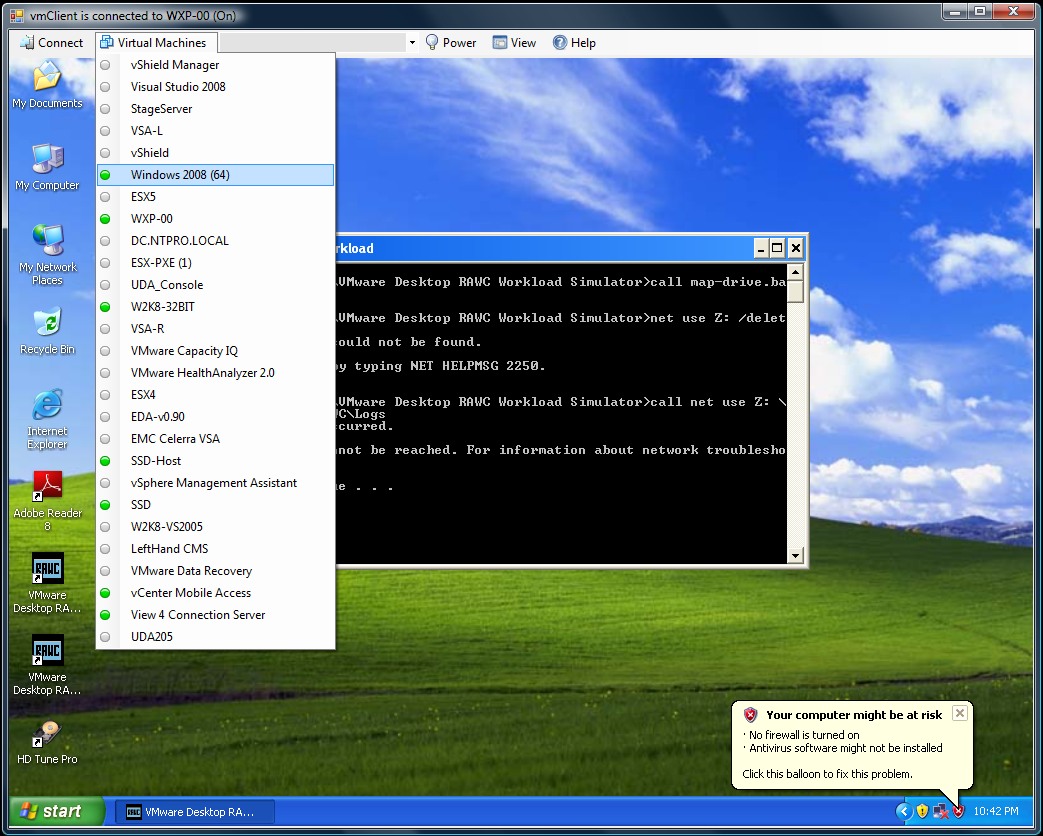
 The newly released vmClient 4.1 is vSphere 4.1 compatible. The vmClient is a lightweight tool which enables you to control the power of your virtual machines, it’s also capable of presenting the MKS console of your virtual machines. Before you can use the vmClient, you have to install the vSphere client on the same system. After starting the vmClient, you can logon to your vCenter server or individual ESX4.1 or ESX4.1i host. A list with available virtual machines will be presented after choosing the Virtual Machines menu item, you can also easily identify the power state of the virtual machines. Grey is powered off, green is powered on, yellow is suspended and red indicates that the virtual machine has an alarm. When you’re working in an RDP session there’s a menu item which can generate a Ctrl-Alt-Del in the guest OS instead of pressing Ctrl-Alt-Ins. The vmClient can run without borders in borderless mode. The menu bar has an option to search for virtual machines, just type in the first characters of your virtual machine name and the list will be filtered.
The number of virtual machines can be too high to fit in the “Virtual Machine” menu item so I’ve added an extra option to disable this menu and use the search menu instead. The option to customize the user interface of the vmClient can be done by changing a few menu settings. You’re able to show or hide menu items using the quick start configuration icon.
You can also pre-select a default virtual machine in these settings. There are two recorded demo sessions available, one which show a walkthrough and a second which shows how to convert the vmClient into a VDI client. The trail version is limited to a maximum number of 50 virtual machines and shows a splash screen with my picture in it. The registered version can be bought online for € 25,00 and has no virtual machine limit, you can not get rid of the splash screen. :-) The Buy Now link is available in the help menu. If you have any ideas or suggestions on improving the vmClient or you’ve found a bug, you know where to reach me. Have fun with it.
How to convert the vmClient into a VDI client
A general walkthrough
The vmClient 4.0 can be downloaded from this location: http://vmclient.nl/
Sunday, September 26. 2010
The vmClient 4.1 is released
Thursday, April 15. 2010
The vmClient - Just a handy tool or a cool lightweight VDI client?
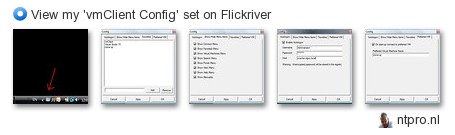
 Recently I’ve added a few new features to the vmClient which enables you to customize the visibility of menus. Because all those new settings could only be changed be editing the registry, I’ve decided to add a configuration dialog. When the vmClient is running, there’s a notification icon visible near your Windows clock in the right lower corner. You have to double click the icon in order to change te vmClient configuration settings. Within the config dialog, there’s an option to enable or disable auto logon and the preferred virtual machine setting. There’s also a tab for configuring your favourites and show or hide individual menu items. The cool feature in this release is... hide all menus, use auto logon and configure a preselected VM and voila there’s you lightweight VDI client.
The download is available at http://vmClient.nl

Saturday, April 10. 2010
The vmClient beta 4.1 offers auto logon
Sunday, March 28. 2010
What's New In vmClient 4.1 Beta
Tuesday, March 9. 2010
The vmClient 4.0 is released
The vmClient is a lightweight tool which enables you to control the power of your virtual machines, it’s also capable of presenting the MKS console of your virtual machines. Before you can use the vmClient, you have to install the vSphere client on the same system. After starting the vmClient, you can logon to your vCenter server or individual ESX4 or ESX4i host. A list with available virtual machines will be presented after choosing the Virtual Machines menu item, you can also easily identify the power state of the virtual machines. Grey is powered off, green is powered on, yellow is suspended and red indicates that the virtual machine has an alarm. When you’re working in an RDP session there’s a menu item which can generate a Ctrl-Alt-Del in the guest OS instead of pressing Ctrl-Alt-Ins. The vmClient can run without borders in borderless mode. The menu bar has an option to search for virtual machines, just type in the first characters of your virtual machine name and the list will be filtered.
The number of virtual machines can be too high to fit in the “Virtual Machine” menu item so I’ve added an extra option to disable this menu and use the search menu instead. The option to customize the user interface of the vmClient can be done by changing a few registry settings. You’re able to show or hide menu items using this hive.
HKEY_CURRENT_USER\Software\VB and VBA Program Settings\NTPRO.NL\vmClient
You can also pre-select a default virtual machine in this hive. There are two recorded demo sessions available, one which show a walkthrough and a second which shows how to convert the vmClient into a VDI client. The trail version is limited to a maximum number of 50 virtual machines and shows a splash screen with my picture in it. The registered version can be bought online and has no virtual machine limit, you can also get rid of the splash screen. :-) The Buy Now link is available in the help menu. If you have any ideas or suggestions on improving the vmClient or you’ve found a bug, you know where to reach me. Have fun with it.
How to convert the vmClient into a VDI client
The vmClient 4.0 can be downloaded from this location: http://vmclient.nl/
Wednesday, November 26. 2008
Start VMware Remote Console with PowerShell
Patrick Schneider created a PowerShell script which can be used to call the VMware Remote Console (VMware VMRC). If you have any questions for Patrick, you can reach him at s.patrick1982(nospam)@gmail.com
cmdlet New-VMRC {
Param(
[Parameter(Mandatory=$true,ValueFromPipeline=$true,HelpMessage="VMs to process")]
[String]
$vms
)
$vm = Get-VM $vms
if($vm.Count) {
Write-Output "Define only one host!"
break
} else {
if ($vm.id) {
$gvm = Get-View $vm.id
} else {
Write-Output "No VM found"
break
}
C:\Program Files\VMwareVMRC\vmware-vmrc.exe -h $vm.Host -m $gvm.Config.Files.VmPathName
}
}
The new VMware Remote Console (VMware VMRC) allows accessing the virtual machine consoles independent of the Web-based management interface. In order to access VMware virtual machines, install VMware the VMRC application from VMware Virtual Server web interface or download VMware VMRC application for Windows from the Minicom web site.
Saturday, September 27. 2008
vmware-vmrc.exe | VMware Remote Console
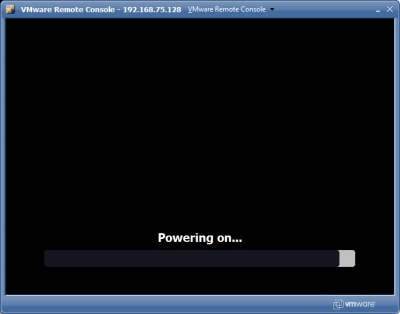
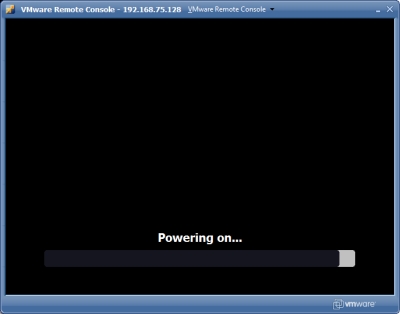
Last year around the summer I created the Virtual Machine MKS Client. It started as sort of a contest with Bouke Groenescheij and eventually matured in a real product. I sold a few copy’s of my tool but hadn’t the time to keep up with the new active objects from VMware. This week I installed VMware Server 2.0 and while I was wondering around in my program files directory it stroked my eyes. The VMware Remote Console aka vmware-vmrc.exe. I had to do some googeling before I found out what the parameters were, but I got it working. This executable can also be used to take over the Mouse Keyboard and Screen of your VM’s running on ESX.
vmware-vmrc -h 192.168.75.128 -m "[Storage1] Nostalgia/Nostalgia.vmx"
Monday, August 20. 2007
Virtual Machine MKS Client v1.9
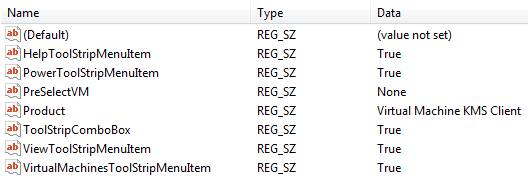
I have been on vacation to the lovely Island of Rhodes (Greece) the past tree weeks. I didn’t take my laptop with me so besides from a few posts there has been little activity regarding the Virtual Machine MKS Client. I had the opportunity to read your suggestions and think about all the new features in the new version. But first of all since nobody sponsored the development I created a commercial version. The trial version shows a maximum of 16 virtual machines and the registered version has no limit. I added a combo box where you can type in the name of the virtual machine with an alphabetic list. You can also customize the menu bar by enabling or disable menu items from the registry. The last feature I added is the PreSelectVM registry key. After logging on to the server this VM is automatically connected. You can find all the keys involved at the hive HKEY_CURRENT_USER\Software\VB and VBA Program Settings\NTPRO.NL\Virtual Machine MKS Client. You can find the download link for the Virtual Machine MKS Client v1.9 in the software menu item of my blog.
Friday, July 27. 2007
Virtual Machine MKS Client v1.8
Thursday, July 26. 2007
Virtual Machine MKS Client v1.7

Another new version of the Virtual Machine MKS Client is released. This new version contains a link which can be used to become a sponsor. Why is sponsorship important ? When you become a sponsor I have the opportunity to add new functions and fix bugs. This way we can keep the quality of the Virtual Machine MKS Client at a high level. When you want to visit the Paypal sponsor page, please use this link. You can find the download link for the Virtual Machine MKS Client v1.7 in the software menu item of my blog.