• Skip to site navigation
  • Skip to blog entries
  • Skip to archive page
  • Skip to right sidebar

WhiteBox

NTPRO.NL - Eric Sloof

  • NTPRO.NL
  • Online Training
  • VMworld
  • Videos
  • Tools
  • iTunes
  • About

Thursday, 9 June 2011

Iomega StorCenter px6-300d Network Storage - Adding iSCSI Drives

I’m very busy with preparing my upcoming "Mythbusters Goes Virtual" VMworld session which will go deep into a few specific well known vSphere myths. The myth busting will be done by Mattias Sundling and me. I’ll have the honour to debunk the fact that RDM offers a better performance compared to VMFS. My lab wasn’t equipped with a device that offers RDM storage and VMFS storage but luckily my good friend Duco Jaspars brought my into contact with Iomega’s Benelux country manager Filip Joly.

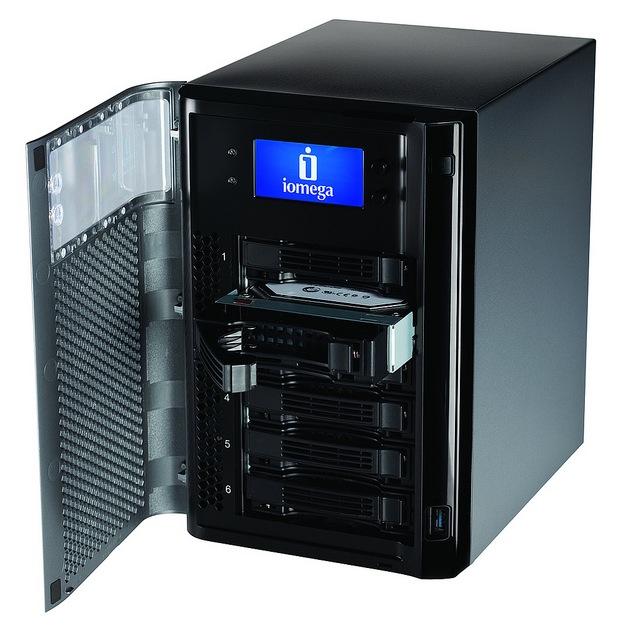
Filip has offered me a brand new StorCenter px6-300d, this is a high performance business class desktop device, ideal for small-to medium sized businesses and distributed enterprise locations like branch and remote offices, for content sharing and data protection. Powered by EMC storage technology and with up to 18TB of storage capacity, including a diskless option, is easy to setup and manage, and affordable to own. This 2 part video demonstration shows you how to add an iSCSI drive to both the px6 and VMware vSphere.

Adding iSCSI Drives

1. To add an iSCSI drive, click  Add an iSCSI drive on the iSCSI page.
2. If your Iomega StorCenter px6-300d has multiple Storage Pools, select the desired Storage Pool from the drop-down menu.
3. Enter a name for the iSCSI drive. How you name your iSCSI drive will depend on your Iomega StorCenter px6-300d meeting one of the following conditions:

• If the iSCSI/Volume Name field displays by itself, enter a name for both. This field displays when your Iomega StorCenter px6-300d is new, has no existing volumes, and supports multiple volumes.

• If the Name field displays by itself, enter a name for the iSCSI drive. This field displays when your Iomega StorCenter px6-300d is new or being upgraded and has only one volume.

• If the Create a volume or Use an existing volume options display, select:

• Create a volume to create a new volume for your iSCSI drive. This option displays when your Iomega StorCenter px6-300d is new, or if you are upgrading your Iomega StorCenter px6-300d and it has available space in its Storage Pools.

• Use an existing volume to use an existing empty or shared volume. This option displays when you are upgrading your Iomega StorCenter px6-300d, have available space in your Storage Pools, and have already created multiple volumes. To use an existing empty volume, select iSCSI/Volume Name and enter a name for the iSCSI drive and volume. To use an existing shared volume, select Shared Volume, select the existing volume, and enter a name for the iSCSI drive.

4. Enter a size for the iSCSI drive.
5. Click Create to create the iSCSI drive.

Posted by
Eric Sloof
in WhiteBox at 22:32 | No comments | No Trackbacks
Bookmark and Share

Friday, 27 May 2011

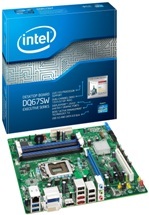
vSphere Home Lab - Intel Desktop Board DQ67SW supports 32 GB

When you’re building a new home lab or adding a new white box to your private cloud, you want to put as much memory into your servers as you can. It’s the same story as in most of the datacenters, CPUs are idling while your ESX servers are running out of memory. Intel has released a new chipset that might be worth a closer look. The Intel Desktop Board DQ67SW supports four 240-pin DDR3 SDRAM Dual Inline Memory Module (DIMM) sockets which can hold 8 GB each. That means 32 GBs of system memory based on  DDR3 1333 or 1066 MHz DIMMs on one board.
 
Based on the latest Intel® Q67 Express Chipset with Intel® vPro™ technology, Intel® Desktop Board DQ67SW is designed to showcase the superior performance quality of the 2nd generation Intel® Core™ vPro™ processor family, enhance office productivity, and lower the total cost of ownership for your business PCs with the newest Intel® Active Management Technology (Intel® AMT) 7.0.

Designed with exceptional stability and compatibility, Intel Desktop Board DQ67SW equipped with the latest SuperSpeed USB 3.0 and SATA 6 Gb/s ports with RAID support. Dual independent display capability with DisplayPort and dual DVI ports.

Posted by
Eric Sloof
in WhiteBox at 21:51 | 3 Comments | No Trackbacks
Bookmark and Share

Saturday, 14 May 2011

Iomega StorCenter px6-300d Takes Center Stage at EMC World 2011

Chad and Wade demonstrate the Iomega StorCenter px6-300d at EMC World during the Chad's World presentation. Chad and Wade launched 100 VMs from the px6-300d. 

Posted by
Eric Sloof
in WhiteBox at 09:16 | No comments | No Trackbacks
Bookmark and Share

Saturday, 13 February 2010

VMWare ESX4i White Box - Acer Aspire X5810

One of my students at last week’s VMware Technical Sales Professional training demoed me his home lab with a real great White Box. Alain used the Aspire X5810 - a multimedia-ready desktop flashing a cool, brushed-metal chassis and streamlined design. This desktop occupies just one-third of the space of a traditional PC. The default CPU is an Intel® Core™2 Quad Processor Q8300 (4M Cache, 2.50 GHz, 1333 MHz FSB), check this page to see if the CPU is Virtualization Technology (VT-x) compatible. The onboard network card isn’t supported by ESX4i, so you have to buy an additional Intel E1000.

Technical Specifications

Model Name: Aspire X5810
Processor & Chipset: Intel® Core™2 Quad processor (up to 95 W)
Intel® Core™2 Duo processor
Intel® G43 Express Chipset
Memory: Up to 8 GB of DDR3 1066 MHz SDRAM (dual-channel support on four DIMMs)
Storage: Serial ATA hard disk up to 1TB (ICH10)

ntpro.nl - View my 'Acer Aspire X5810 ' set on Flickriver

Posted by
Eric Sloof
in WhiteBox at 15:14 | 1 Comment | No Trackbacks
Bookmark and Share

Sunday, 24 January 2010

ICH9 or ICH10 does it really matter?

A few days ago I’ve hooked-up my newly bought Intel SSD drive to one of my ESX server but didn’t realize it was the one with an ICH9 SATA controller. After some first tests I was a bit disappointed with the outcome, only 150 MB/Sec. After exchanging some email with Simon Seagrave over at techhead.co.uk who also has bought an SSD drive, I realized I was using the wrong ESX server. The SSD drive is now hooked-up to a server with an ICH10 SATA controller. I quickly fired-up the servers to see how fast the SSD drive is running now and it really matters. The difference is significant.

Posted by
Eric Sloof
in WhiteBox at 22:46 | No comments | No Trackbacks
Bookmark and Share

Friday, 22 January 2010

Running the VMFS on SSD storage? Yes we can!!!

Next week my new Cisco Catalyst 2960G-8TC-L switch will arrive so I went to the store to buy some additional Intel PRO/1000 adapters to get fully prepped. While I was waiting in queue at Informatique an article written by Chad Sakac popped into my mind, in his article he predicted that 2010 will be the year of Solid State Storage. I noticed a real nice offer from Intel; the X25-M Postville SSD 80GB for only 200€ and tough what te heck, let’s buy one.

Model Name Intel X25-M Mainstream SATA Solid-State Drive
Capacity 80GB
NAND Flash Components Intel® Multi-Level Cell (MLC) NAND Flash Memory
Bandwidth  Up to 250MB/s Read Speeds - Up to 70MB/s Write Speeds
Read Latency 85 microseconds
Interface SATA 1.5 Gb/s and 3.0 Gb/s

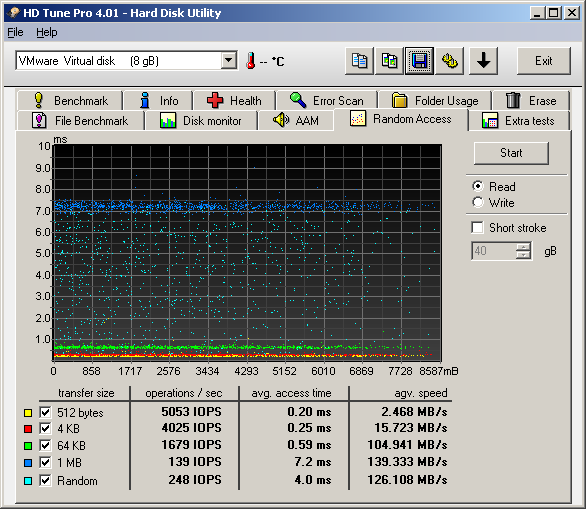
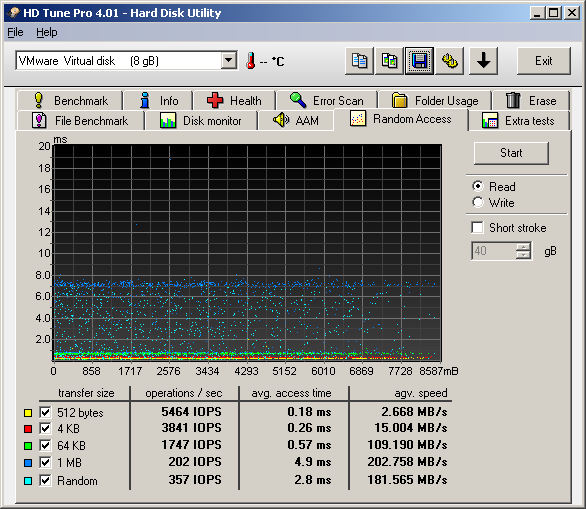
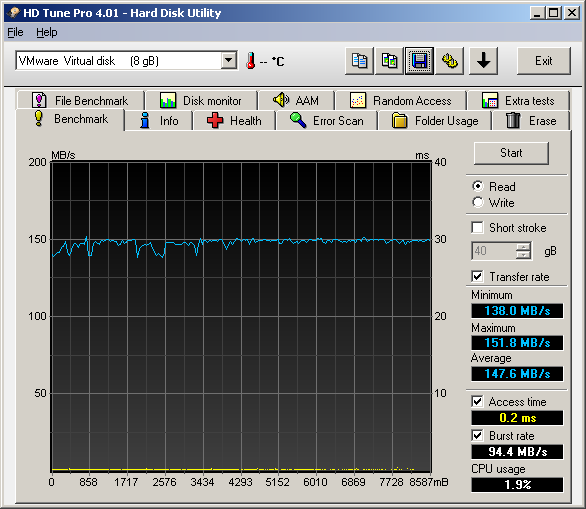
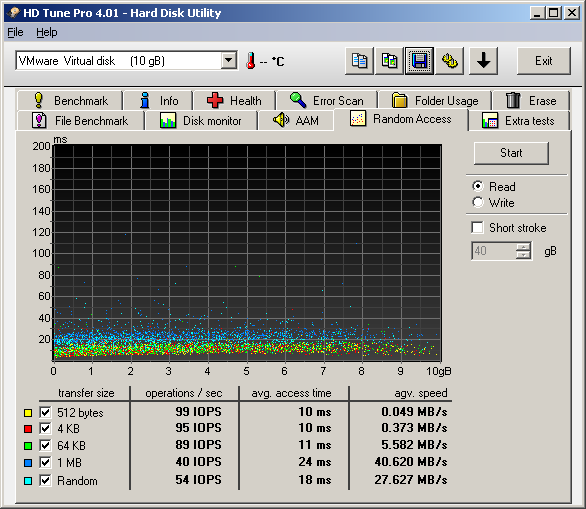
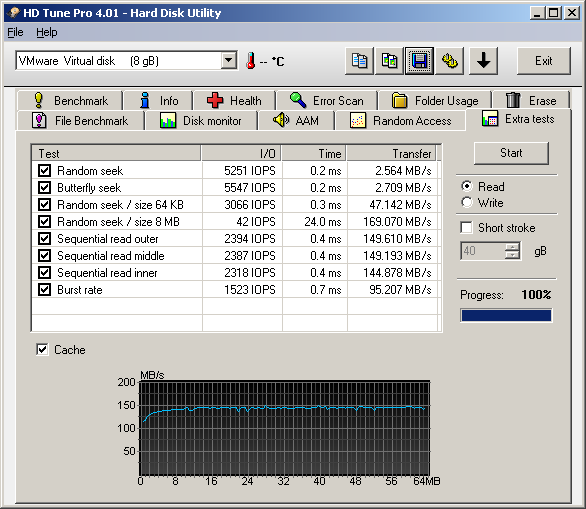
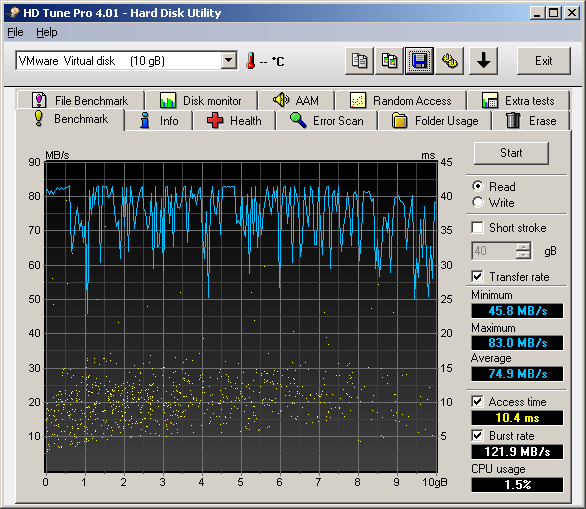
All the NICS and the SSD drive are build into my two white boxes so I fired up HD Tune Pro in a virtual machine with a 8 GB test disk hosted on the newly created SSD-VMFS. The HD Tune Pro has a real nice feature which enables you to export screenshots of the measurements.

So, here is a quick benchmark comparison between SATA (10 GB) and SSD (8 GB) storage.


Posted by
Eric Sloof
in WhiteBox at 22:26 | 1 Comment | 1 Trackback
Bookmark and Share

Tuesday, 17 November 2009

A True Nehalem Whitebox for ESX4

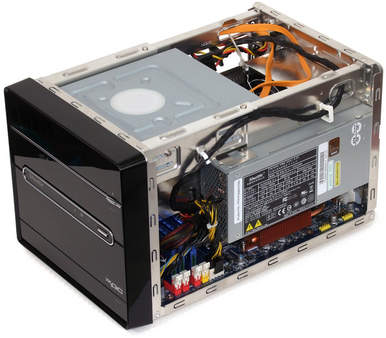
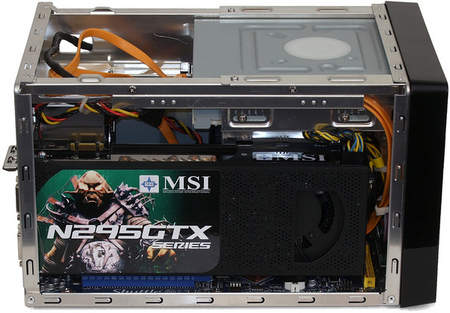
The past few days the experts from inPeople and inVirtualize have been working on their Nehalem Whitebox. This great setup with an Intel Core i7 975 Extreme 1366 processor has the pleasure to ultra-fast take use of the enclosed 16Gbyte of memory. Of course they've added some other speedy goodies like Solid State Disk and some extra NIC ports. Here are the specs for those who want to start playing as well.

Shuttle SX58H7

• Processor Intel® Core i7 975 Extreme 1366
• Memory DDR3 1333MHz 4x4GB
• Storage 2x Transcend 32GB TS32GSSD25S-M SATA
• SSD Bracket Scythe Twin Mounter (2x 2,5" in one 3,5")
• Network Intel® PRO/1000 PT Quad Port Server
• Graphic Point VGA 8400GS 512MB PCIe
• External DVD ;-)

They will start adding some shared storage (QNAPs with a lot more SSD) to build several solutions on top of it. More details will follow...


Posted by
Eric Sloof
in WhiteBox at 20:24 | 9 Comments | 1 Trackback
Bookmark and Share

Thursday, 5 November 2009

Control your home lab with an IP Boot Manager

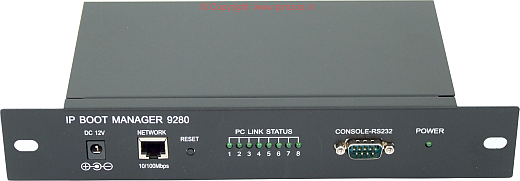
When teaching classes I always show my students how to build up their own vSphere home lab just to run through the labs again or because it’s so cool to do a VMotion at home. One of my students has sent me an email with a link to a really nice device that can save you lots of money on your energy bill. Jean-Marc Zohlandt has bought the IP Boot Manager 9280 and is powering on his machines from a remote location only when they need to be powered on.

IP Boot Manager acts as a manager for your PC & Server . It handles all the ESX servers and storage with just one Internet Browser Screen and a simple connection to Internet. You can remote control & access the power + Reset and schedule daily server actions.

It saves manpower and time during unmanned periods. No more driving to the server room for a reset. IP Boot Manager 9280 is a unique device designed to help you manage up to 8 separate servers with one IP address. With this device you can control Power (On/Off), Reset, Schedule daily server actions and Auto ping (Watch Dog) your ESX servers.

Posted by
Eric Sloof
in WhiteBox at 21:54 | No comments | No Trackbacks
Bookmark and Share

Monday, 26 October 2009

New! StorCenter ix2-200 - VMware certified for NFS and iSCSI

Introducing the StorCenter ix2-200 Network Storage device, offering content sharing with advanced media features and data protection in an easy-to-use product ideal for small/remote offices, workgroups and power home users.

- Built-in EMC world-class storage and security technologies for enhanced data protection
- Easy 4-click setup
- Remote access to your network storage device from anywhere in the world
- Built-in torrent support for peer-to-peer file sharing
- User replaceable drives
- Iomega QuikTransfer moves data from a USB drive or replicates your data without the need of a PC
- Advanced features such as security camera capabilities, user/group setups, and Bluetooth upload
- Device-to-Device Replication using rsync-powered copy jobs.
- VMware certified for NFS and iSCSI
- Three year product warranty (with registration)
- 1TB, 2TB and 4TB capacities available

Posted by
Eric Sloof
in WhiteBox at 21:27 | 3 Comments | No Trackbacks
Bookmark and Share

Wednesday, 3 June 2009

Roll your own VMware ESXi Server and more - Hak5

Building your own VMware ESXi Server in under an hour with parts you may have lying under your bed. Extreme sports cameras and mounts and mounts can be expensive. Why not build your own for about 5 bucks. And light video editing that's both easy and free? Avidemux may be the answer.

Posted by
Eric Sloof
in WhiteBox at 21:23 | No comments | No Trackbacks
Bookmark and Share

Thursday, 28 May 2009

ESX4 Whitebox list released

Dave Mishchenko has published a lot of tips and tricks about running ESXi and ESX 4.0 on unsupported, but working hardware. The list contains motherboards and unsupported servers that work with ESX 4.0 and / or ESXi 4.0 installable. Add your own known to be working model or take a peek at the list at http://www.vm-help.com.

This table contains a list of systems, motherboards, storage controllers and network cards that have been tested and found to work with ESX 4.0 or ESXi 4.0 Installable. Please check out the source column for a system you are considering using as some systems will include special steps to enable ESX / ESXi to run on that system or have other issues to overcome. None of these systems are supported by VMWare for running ESX.

Posted by
Eric Sloof
in WhiteBox at 20:36 | No comments | No Trackbacks
Bookmark and Share

Friday, 17 April 2009

A VMware High-Availability Cluster at Home

Home-Lab two Whites-Boxes The past few days I’ve been very busy with building my second future proof ESX server. I still had an unused (repaired) Asus V2-P5G33 Bare-Bone, and decided to buy some CPU and memory to get this host up and running. Here’s my shopping list.

  • Bare bone Asus V2-P5G33
  • Processor Intel(R) Core(TM) Quad CPU Q9400 @ 2.66 GHz
  • Memory OCZ 8 GB DDR2-800 Kit
  • Storage  Samsung HD501LJ 500GB Internal SATA 16MB 7200RPM Hard Drive
  • Network Intel® PRO/1000 PT Dual Port Server Adapter
  • DVD-ROM Samsung SH-D163
  • Diet Coke

The first thing I did was a vMotion migration of a virtual machine with it's disk on an Openfiler Virtual iSCSI Appliance. The second thing I tried was, enabling Fault Tollerence, but that didn’t work because my CPU’s aren’t supported. The third thing I did was enabeling VMware HA.
When you enable a cluster for VMware HA, you specify the number of host failures to be able to recover from. If you specify the number of host failures allowed as 1, VMware HA maintains enough capacity across the cluster to tolerate the failure of one host, so that all running virtual machines on that host can be restarted on remaining hosts. By default, you cannot power on a virtual machine if doing so violates required failover capacity. In the HA Advanced Runtime Info, you can check how many “Available slots” are left, and what resources on “Slot size” takes.

Posted by
Eric Sloof
in WhiteBox at 13:55 | 11 Comments | No Trackbacks
Bookmark and Share

Monday, 9 February 2009

New ESX WhiteBox Asus V3-P5G45

Eric Sloof's new barebone

My prior WhiteBox suddenly didn’t start-up anymore; the guys over at Alternate did some tests and concluded; the motherboard was broken. They didn’t give me a replacement, but will send the barebone to Asus. I should expect it to return in six weeks! Yes, I definitely made some noise over there and finally got discount on the new model, the Asus V3-P5G45. I also swapped the DVD-DMA for a DVD-SATA, and placed all the other parts into the new box. I pressed the power button with crossed fingers, and the Asus V3-P5G45 works like a charm. I only had to answer some relocation questions when I tried to start the VM’s. So here’s my new shopping list:

  • Bare bone Asus V3-P5G45
  • Processor Intel(R) Core(TM) Quad CPU Q8200 @ 2.33 GHz
  • Memory GeiL 8 GB DDR2-667 Kit
  • Storage  Samsung HD501LJ 500GB Internal SATA 16MB 7200RPM Hard Drive
  • Network Intel® PRO/1000 PT Dual Port Server Adapter
  • DVD-ROM Samsung SA-D163
Posted by
Eric Sloof
in WhiteBox at 14:40 | 11 Comments | No Trackbacks
Bookmark and Share

Monday, 12 January 2009

My ESX future version compatible WhiteBox

Asus V2-P5G33

Finally I had some time left (no training at the moment) and took the opportunity to build a decent WhiteBox. This bare bone system contains an Intel QuadCPU and 8 GB of memory and still stays under $500 USD. I’ve installed the future version of ESX and it works like a charm. The first virtual machine I created is acting as my vCenter Server and I installed it while I was cooking dinner, great performance. The next step is installing Windows 7 (64 bit), but my good old friend Mike Laverick has beat me to it. He’s already showing some really cool VMware View stuff.  I’m still going to try out some of the new features anyway.

Here’s my shopping list:

Bare bone Asus V2-P5G33
Processor Intel(R) Core(TM) Quad CPU Q8200 @ 2.33 GHz
Memory GeiL 8 GB DDR2-667 Kit
Storage  Samsung HD501LJ 500GB Internal SATA 16MB 7200RPM Hard Drive
Network Intel® PRO/1000 PT Dual Port Server Adapter
DVD-ROM Asus DVD-E818A3T

Two side notes. You can use a normal network card. It doesn’t have to be an Intel® PRO/1000 PT Dual Port Server Adapter, as long as it’s an Intel PRO, the onboard Marvel adapter isn’t supported. Besides that, I’ve bought the wrong DVD-ROM. There’s little support for IDE or PATA DVD-ROM devices so you better choose a SATA DVD-ROM, otherwise the setup will crash,  asking you for the install media. My list is no guarantee, maybe the final ESX release isn’t working on this configuration. Have fun with it.

IMGP0192     IMGP0195     IMGP0196     IMGP0194

   
Posted by
Eric Sloof
in WhiteBox at 21:46 | 4 Comments | No Trackbacks
Bookmark and Share
(Page 1 of 2, totaling 18 entries) next pagenext page


Twitter RSS FeedLinkedIn

www.hetesambal.nl

Veeam Webinar with Doug Hazelman: 5 Steps to Successful Backup & Replication for Hyper-V! Watch it now >>

Recent Entries

Storage Design and Implementation in vSphere 5.0 - The Rough Cuts
Thursday, January 19 2012
Top 25 Free Tools for VMware vSphere presented by David Davis and Kendrick Coleman
Monday, January 16 2012
LG Android running VMware Horizon Mobile hands-on
Saturday, January 14 2012
Forbes Guthrie has released the vSphere 5 vReference Card
Thursday, January 12 2012
VMworld Session - VMware vMotion in VMware vSphere 5: Architecture, Performance & Best Practices
Wednesday, January 11 2012
Voice Over IP (VoIP) Performance Evaluation on VMware vSphere 5.0
Tuesday, January 10 2012
VMware vCloud Director 1.5 Performance and Best Practices
Monday, January 9 2012
VMware vCenter Site Recovery Manager 5.0 Performance and Best Practices
Sunday, January 8 2012
New Training - VMware vSphere 5 Design Workshop
Saturday, January 7 2012
New Training - VMware View 5 Install, Configure and Manage
Friday, January 6 2012

Archive

  • June 2011 (1)
  • May 2011 (2)
  • February 2010 (1)
  • January 2010 (2)
  • November 2009 (2)
  • October 2009 (1)
  • June 2009 (1)
  • May 2009 (1)
  • April 2009 (1)
  • February 2009 (1)
  • January 2009 (1)
  • October 2008 (2)
  • March 2008 (2)
  • Recent...
  • Older...
Based on the s9y Bulletproof template framework
Powered by s9y – Template by Bulletproof development team.
  • NTPRO.NL
  • Online Training
  • VMworld
  • Videos
  • Tools
  • iTunes
  • About