• Skip to site navigation
  • Skip to blog entries
  • Skip to archive page
  • Skip to right sidebar

Products

Eric Sloof - NTPRO.NL

  • NTPRO.NL
  • Online Training
  • VMworld
  • Videos
  • Tools
  • iTunes
  • About

Sunday, 26 September 2010

The vmClient 4.1 is released

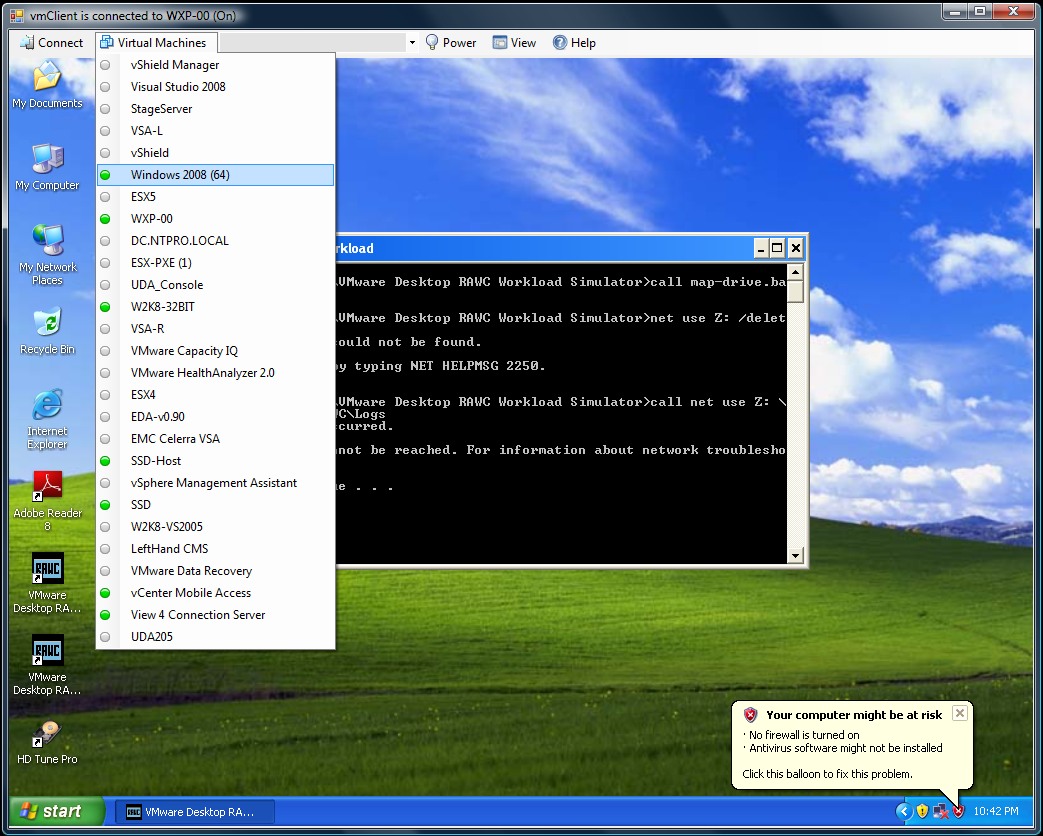
Eric Sloof just launched the vmClient 4.1 The newly released vmClient 4.1 is vSphere 4.1 compatible. The vmClient is a lightweight tool which enables you to control the power of your virtual machines, it’s also capable of presenting the MKS console of your virtual machines. Before you can use the vmClient, you have to install the vSphere client on the same system. After starting the vmClient, you can logon to your vCenter server or individual ESX4.1 or ESX4.1i host. A list with available virtual machines will be presented after choosing the Virtual Machines menu item, you can also easily identify the power state of the virtual machines. Grey is powered off, green is powered on, yellow is suspended and red indicates that the virtual machine has an alarm. When you’re working in an RDP session there’s a menu item which can generate a Ctrl-Alt-Del in the guest OS instead of pressing Ctrl-Alt-Ins. The vmClient can run without borders in borderless mode. The menu bar has an option to search for virtual machines, just type in the first characters of your virtual machine name and the list will be filtered. 

The number of virtual machines can be too high to fit in the “Virtual Machine” menu item so I’ve added an extra option to disable this menu and use the search menu instead. The option to customize the user interface of the vmClient can be done by changing a few menu settings. You’re able to show or hide menu items using the quick start configuration icon.

You can also pre-select a default virtual machine in these settings. There are two recorded demo sessions available, one which show a walkthrough and a second which shows how to convert the vmClient into a VDI client. The trail version is limited to a maximum number of 50 virtual machines and shows a splash screen with my picture in it. The registered version can be bought online for € 25,00  and has no virtual machine limit, you can not get rid of the splash screen. :-) The Buy Now link is available in the help menu. If you have any ideas or suggestions on improving the vmClient or you’ve found a bug, you know where to reach me. Have fun with it.

How to convert the vmClient into a VDI client

A general walkthrough

The vmClient 4.0 can be downloaded from this location: http://vmclient.nl/

Posted by
Eric Sloof
in Products, VM MKS Client, vmClient at 21:50 | No comments | No Trackbacks
Bookmark and Share

Thursday, 15 April 2010

The vmClient - Just a handy tool or a cool lightweight VDI client?

Get the stadaard version free Recently I’ve added a few new features to the vmClient which enables you to customize the visibility of menus. Because all those new settings could only be changed be editing the registry, I’ve decided to add a configuration dialog. When the vmClient is running, there’s a notification icon visible near your Windows clock in the right lower corner. You have to double click the icon in order to change te vmClient configuration settings. Within the config dialog, there’s an option to enable or disable auto logon and the preferred virtual machine setting. There’s also a tab for configuring your favourites and show or hide individual menu items. The cool feature in this release is... hide all menus, use auto logon and configure a preselected VM and voila there’s you lightweight VDI client.
ntpro.nl - View my 'vmClient Config' set on Flickriver
The download is available at http://vmClient.nl

Posted by
Eric Sloof
in Products, Tools, VM MKS Client, vmClient, VMware View at 12:12 | 5 Comments | No Trackbacks
Bookmark and Share

Tuesday, 9 March 2010

The vmClient 4.0 is released

Eric Sloof just launched the vmClient 4.0 The vmClient is a lightweight tool which enables you to control the power of your virtual machines, it’s also capable of presenting the MKS console of your virtual machines. Before you can use the vmClient, you have to install the vSphere client on the same system. After starting the vmClient, you can logon to your vCenter server or individual ESX4 or ESX4i host. A list with available virtual machines will be presented after choosing the Virtual Machines menu item, you can also easily identify the power state of the virtual machines. Grey is powered off, green is powered on, yellow is suspended and red indicates that the virtual machine has an alarm. When you’re working in an RDP session there’s a menu item which can generate a Ctrl-Alt-Del in the guest OS instead of pressing Ctrl-Alt-Ins. The vmClient can run without borders in borderless mode. The menu bar has an option to search for virtual machines, just type in the first characters of your virtual machine name and the list will be filtered. 

The number of virtual machines can be too high to fit in the “Virtual Machine” menu item so I’ve added an extra option to disable this menu and use the search menu instead. The option to customize the user interface of the vmClient can be done by changing a few registry settings. You’re able to show or hide menu items using this hive.

 HKEY_CURRENT_USER\Software\VB and VBA Program Settings\NTPRO.NL\vmClient

You can also pre-select a default virtual machine in this hive. There are two recorded demo sessions available, one which show a walkthrough and a second which shows how to convert the vmClient into a VDI client. The trail version is limited to a maximum number of 50 virtual machines and shows a splash screen with my picture in it. The registered version can be bought online and has no virtual machine limit, you can also get rid of the splash screen. :-) The Buy Now link is available in the help menu. If you have any ideas or suggestions on improving the vmClient or you’ve found a bug, you know where to reach me. Have fun with it.

How to convert the vmClient into a VDI client

A general walkthrough

The vmClient 4.0 can be downloaded from this location: http://vmclient.nl/

Posted by
Eric Sloof
in Products, Tools, VM MKS Client, vmClient, VMware, vSphere at 13:31 | 5 Comments | 1 Trackback
Bookmark and Share

Tuesday, 2 March 2010

Eric Sloof's Cool Tool - vmClient - Sneak Preview

I’ve been busy with coding the past few days. I’ve successfully completed my Microsoft Partnership admission and received a  subscription to their developer network. Now I’ve access to all the developer tools an operating systems you can dream of. My coding project has to do with a project I started a few years ago, I’ve written a little cool tool called the Virtual Machine MKS Client. Eventually it ended up in some sort of a contest with Bouke Groenescheij and Richard Garsthagen when Bouke and I did a freelance job at Ahrend, we had some real fun and long channel walks. Since the training business is a bit sloppy this month I’m trying to revive the tool and make it vSphere compatible. I started with converting it to Visual Studio 2008 and had to rebuild some DLL’s. I endured some real challenges with VMware’s new activeX (VNC) object but finally I got it to work.  Here’s a Jing movie with a sneak preview, it will take at least another week to make the beta publicly available.

http://www.screencast.com/users/esloof/folders/Jing/media/dcf472ed-d268-4ffb-94d4-20ebc3f44de0

Posted by
Eric Sloof
in Products, vmClient at 22:39 | 1 Comment | No Trackbacks
Bookmark and Share

Saturday, 9 January 2010

Creating LinkedClones with the Virtualization EcoShell

When you’re running a Virtual Machine in a production environment and want to perform some tests on it but don’t have enough time or space on your Datastores to create a full hot clone, there’s an alternative.

vSphere 4.0 supports linked virtual machines, which are two or more virtual machines that share storage. Linked virtual machines support efficient sharing of duplicated data. In its simplest form, shared storage is achieved through the use of delta disk backings. A delta disk backing is a virtual disk file that sits on top of a standard virtual disk backing file. Each time the guest operating system on a virtual machine writes to disk, the data is written to the delta disk.

Each time the guest operating system on a virtual machine reads from disk, the virtual machine first targets the disk block in the delta disk. If the data is not on the delta disk, the virtual machine looks for them on the base disk.

Linked virtual machines can be created from a snapshot or from the current running point. After you create a virtual machine, they share the base disk backing and each virtual machine has its own delta disk backing. You can have up to eight virtual machines in a linked virtual machine group. The virtual machines in the group cannot be part of a VMware HA cluster.

Hal Rottenberg is the author of the New-LinkedClone.ps1 PowerShell script, it’s adapted from a technique published originally by Keshav Attrey. Also see William Lam's Perl script and Leo's manual version for ESX 3.5 but I believe, back in 2007 I was one of the first to discover this technique.
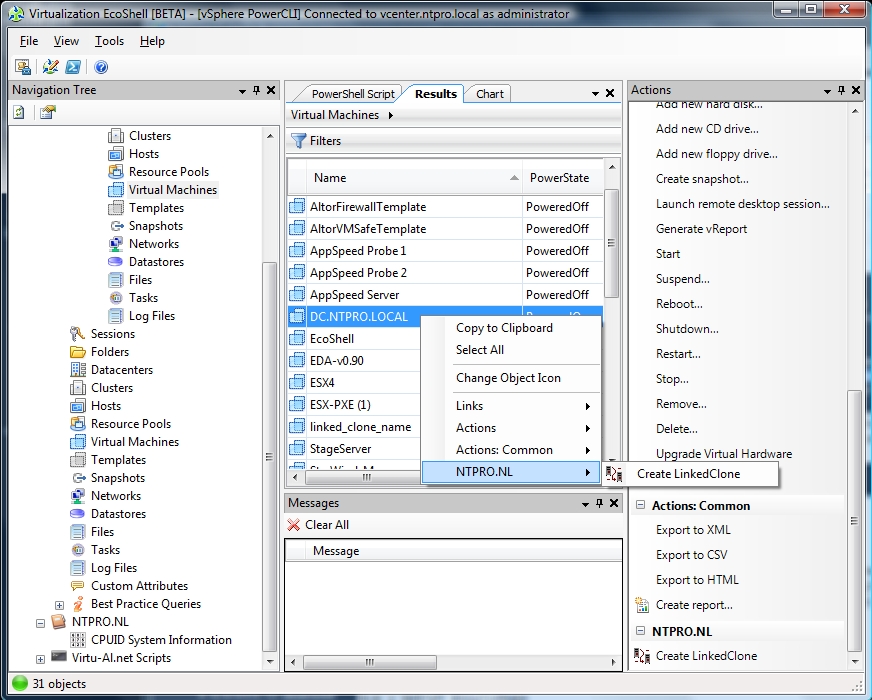
I’ve made some little modifications in Hal’s script and added it as a Script Action to the Virtualization EcoShell by clicking “Add new item” in the actions menu on the right side of the EcoShell console. This enables you to specify a script performing the Action. When you click an Action, objects currently selected in the grid are piped into the script. The LinkedClones Script Action is part of the newest version (1.08) of the NTPRO.NL PowerPack, you can get a copy here. The screen shot shows you how it works.

Update: Alan Renouf has emailed me a link to an interesting knowledge base article regarding Virtual machines from a single disk chain may only run on 8 hosts (VMFS).

Posted by
Eric Sloof
in Products at 21:50 | 9 Comments | 1 Trackback
Bookmark and Share

Sunday, 3 January 2010

CPUID System Information

I’ve created a new Virtualization EcoShell PowerPack with only one Script Node and it’s called “CPUID System Information“ which shows the VMHost CPU Info.  The inspiration for building this new PowerPack came from VMware’s evangelist Richard Garsthagen who has built the well known Visual Basic Application, VMware CPU Host Info.  “CPUID System Information” is completely based on PowerShell and VMware’s PowerCLI. The script is able to show you which features (CPUIDs) are available on your ESX server’s CPUs. Besides checking VMotion compatibility it also shows you:

  • Enhanced VMotion Compatibility (EVC) levels which simplifies VMotion compatibility issues across CPU generations. EVC automatically configures server CPUs with Intel FlexMigration or AMD-V Extended Migration technologies to be compatible with older servers.
  • All the important CPU features like: VMX, MONITOR/MWAIT , SSE3, SSSE3 ,SSE4.1 ,SSE4.2 ,CMPXCHG8B ,CMPXCHG16B ,NX/XD ,Long mode support ,RDTSCP ,3DNow! ,3DNow! Extensions ,FFXSR ,Prefetch instructions.

I’ve three versions available for download.

The first one can be used as a PowerPack in the Virtualization EcoShell.


     http://www.ntpro.nl/blog/uploads/NTPRO.NL.powerpack

Continue reading "CPUID System Information " »
Posted by
Eric Sloof
in Products at 21:19 | 1 Comment | 1 Trackback
Bookmark and Share

Thursday, 29 October 2009

VESI PowerPack Authoring

I created my first VESI PowerPack with a little help from Alan Renouf, Darin Pendergraft and Carter Shanklin. Before I’m going to show off, first let’s explain what a PowerPack actually is.
A PowerPack is a collection of PowerShell scripts that are used to extend the Virtualization EcoShell administrative console. These scripts are stored inside of nodes, links or actions all of which are used to add functionality into the console.


Carters Shanklin’s WebEx sessions are awesome, he demoed a well written series of PowerShell scripts. With one of his scripts you’re able to collect the %RDY time statistics for all your Virtual Machines. The most common cause of high ready time is trying to get too much work out of too little hardware. Often this condition is observable when ready time is high and total host CPU utilization is also very high. The only fix for this is to back off the load on the system. VMs should be migrated off or processor resources should be increased. I combined Carter’s script with a new feature in the Virtualization EcoShell and created my first PowerPack.

If you’re interested in creating your own PowerPack take a look at the “PowerGUI Basic PowerPack Authoring” created by Darin Pendergraft. Also keep an eye on Alan Renouf’s website http://www.virtu-al.net/ , he’s going to launch a real cool VESI PowerPack with all his PowerShell scripts, I’ve received the beta and it already looks impressive.

 Here's my PowerPack: http://www.ntpro.nl/blog/uploads/NTPRO.NL.powerpack

Posted by
Eric Sloof
in Products at 21:46 | No comments | 1 Trackback
Bookmark and Share

Tuesday, 5 May 2009

Virtual Machine Blue Screen detector

I recently posted an article about capturing screenshots of virtual machines. The PowerShell code is based on VMware’s PowerCLI and the VI Toolkit Extensions. The user interface was created with Sapien’s free PrimalForms. I received a lot of comments asking me if this script could be of any practical use in a production environment, and I must admit I had some thoughts about it too. This morning I received a real cool PowerShell script from Carter Shanklin, VMware’s Product Manager, End User Enablement. His script is able to run a screenshot through OCR and extract anything interesting from it.

Optical Character Recognition (OCR) extracts text and layout information from document images. With the help of Microsoft Office Document Imaging Library (MODI), which is contained in the Office 2003 and 2007 package, you can easily integrate OCR functionality into your own applications. In combination with the MODI Document Viewer control, you will have complete OCR support with only a few lines of code.

Virtual Machine Blue Screen Detector

In the image you see the "Virtual Machine Blue Screen Detector" in action, first it captures a screenshot of a virtual machine. Secondly it uses the Toolkit Extensions to copy it to the local drive. When the PNG image is saved on the local drive, it’s converted to TIFF. The TIFF image will be used to extract the text using OCR.

Now, how can we create a blue screen? We could use this utility, “StartBlueScreen.exe” just as it sounds, allows you to crash the Windows operating system by initiating a Blue Screen of Death according to 5 parameters that you specify from command-line. StartBlueScreen.exe loads a very small device driver named NirSoftBlueScreenDriver.sys that calls the crash API function of Windows Kernel (KeBugCheckEx) with the 5 crash parameters that you specify in the command-line.

You can get your copy of the Virtual Machine Blue Screen Detector here.

Update : Luc Dekens (@LucD22) Great script, nice how it brings different features together. Now could you make it read out the BSOD ? ;-) Sure Luc, here you go.

Posted by
Eric Sloof
in Products at 14:32 | 6 Comments | No Trackbacks
Bookmark and Share

Monday, 4 May 2009

Big Brother Really Is Watching

VMware ESX4 and the new vCenter server both offer a lot of new  SDK properties and methods. One of the new methods is CreateScreenshot_Task which is part of the  ManagedObjectReference:VirtualMachine. This method creates a screenshot of the virtual machine console, the image is saved as a portable network graphics (.png) file in the virtual machine folder. This features is normally used by HA Virtual Machine Monitoring. The Virtual Machine Monitoring feature uses the heartbeat information that VMware Tools captures as a proxy for guest operating system availability. This allows VMware HA automatically to reset or restart individual virtual machines that have lost their ability to heartbeat. Before resetting or restarting the Virtual Machine the vCenter server creates a snapshot of a possible BSOD.  I created a PowerShell script which initiates and copies the screenshots of 9 Virtual Machines. The screenshots are presented in a user interface constructed with Sapien's free PrimalForms. The PowerShell code is still rough and can be improved dramatically.


Posted by
Eric Sloof
in Products at 14:49 | 8 Comments | No Trackbacks
Bookmark and Share

Monday, 2 March 2009

New version Resource Pool Reservation Script released

PowerShell
Rob Mokkink released an updated version of the Resource Pool Reservation Script. This script is based on my Resource Pool Calculator. He modified it quite a bit. It now has logging, can be run as a scheduled task, % of resource reservation for memory and CPU that can be set on a resource pool. The script respects the reservation set on a particular VM.

The Dynamic Resource Pool Calculator recalculates all your resource pools. Depending on the number of virtual machines per resource pool, the number of reservations for memory and CPU is automatically lifted after running the Dynamic Resource Pool Calculator. The script also respects the existing individual virtual machine reservations and adds those value’s to the total RP sum.
Posted by
Eric Sloof
in Products at 21:42 | No comments | No Trackbacks
Bookmark and Share

Sunday, 28 September 2008

Embedding a website in the VI Client

Carter Shanklin, Product Manager for VMware specializing in APIs and SDKs has written an excellent article about running PowerShell from the VI Client with  icomasoft PowerScripter. While I was looking at his screen dumps, I noticed a Plugin I didn’t see before. The plugintoys.chat VMware viClientScripts was available in his Plugin Manager. It didn’t take me that long to discover another great article from Charter describing this new Plugin.

One nice thing about the plug-in architecture we've released is how easy it is to do web-based mashups. This thread shows you how to insert a chat window into your VirtualCenter client that makes it possible for everyone who manages an instance of VirtualCenter to chat to each other in real-time. This is all made really simple using Meebo Rooms. In this demo I've created a Meebo room devoted to VI Client Plug-ins, but you could just as easily create your own room specific to your team.

Based on his XML file I created my own XML file just to see if it works, and it did. When you want to integrate you own webpage into the VI Client just edit the XML file and copy it to the Plugins directory.

C:\Program Files\VMware\Infrastructure\Virtual Infrastructure Client\Plugins\NTPRO.NL


<scriptConfiguration version="1.0.0">
 <key>NTPRO.NL</key>
 <description>Eric Sloof's website</description>
  <view parent="Inventory.Global">
   <title locale="en">NTPRO.NL</title>
   <url>http://www.ntpro.nl</url>
  </view>
  <view parent="Inventory.Datacenter">
   <title locale="en">NTPRO.NL</title>
   <url>http://www.ntpro.nl</url>
  </view>
  <view parent="Inventory.VirtualMachine">
   <title locale="en">NTPRO.NL</title>
   <url>http://www.ntpro.nl</url>
  </view>
  <view parent="Inventory.Cluster">
   <title locale="en">NTPRO.NL</title>
   <url>http://www.ntpro.nl</url>
  </view>
  <view parent="Inventory.HostSystem">
   <title locale="en">NTPRO.NL</title>
   <url>http://www.ntpro.nl</url>
  </view>
  <view parent="Inventory.ResourcePool">
   <title locale="en">NTPRO.NL</title>
   <url>http://www.ntpro.nl</url>
  </view>

Posted by
Eric Sloof
in Products at 11:57 | No comments | No Trackbacks
Bookmark and Share

Sunday, 31 August 2008

PowerShell Scripting Contest | The Resource Pool Calculator

PowerShell This Dynamic Resource Pool Calculator recalculates all your resource pools. Depending on the number of virtual machines per resource pool, the number of reservations for memory and CPU is automatically lifted after running the Dynamic Resource Pool Calculator. The script also respects the existing individual virtual machine reservations and adds those value’s to the total RP sum.

When a virtual machine doesn’t have a reservation, the virtual machine memory is used to calculate the Resource Pool reservation. When the $MemFactor is 2, the virtual machine memory is divided by 2. This means a Virtual machine with 1024 MB lifts the Resource Pool reservation with 512 MB. The $CPUFactor is multiplied by the number of CPU’s. This means a virtual machine with 2 CPU ‘s will create a lift of 1024 MHz on the Resource Pool.

User Interface Resource Pool Calculator
This script can present a GUI to the end user or can be run interactive from the PS command line. If no arguments are specified, the GUI starts. If a resource pool is passed as an argument, this resource pool will be processed without the GUI.

Admin Guide

Demo Movie

DRPC-Script.ps1

Posted by
Eric Sloof
in Products at 20:49 | No comments | No Trackbacks
Bookmark and Share

Friday, 20 July 2007

Virtual Machine MKS Client v1.2

First of all I would like to thank Robert Baumstark. He is the one who has build the VIClient.dll and helped me tremendously. I created a new version of the Virtual Machine MKS Client, this version has better sizing, very handy when working on a small desktop with large virtual machines. Another new thing is the title bar, it displays the status and name of the controlled virtual machine. You can download the new version here.

Power Menu

Then about the contest, Richard Garthagen joined in so we can expect a MKS tool on run-virtual this summer. Bouke Groenescheij was behaving very strange yesterday. He wouldn’t talk to me and suddenly claimed a new domain name and made an announcement about vvi-world ? I suspect someone has put something in his tea here at Ahrend ;-). I took a peek at his KVM-Tool and it’s impressive. His tool allows you to open multiple console sessions and logs on to an ESX server directly.
What to expect in the future, well I like the multiple screen option so I’m going to build a tear off button. Besides that Dee made a comment and suggested to allow the virtual machine to be connected to the local CD drive on the client. Any other suggestions are welcome.

Continue reading "Virtual Machine MKS Client v1.2" »

Posted by
Eric Sloof
in Products at 09:50 | No comments | No Trackbacks
Bookmark and Share

Wednesday, 13 June 2007

vmCDConnected revisited

A few weeks ago I started building my first Visual Basic 2005 application. What I wanted to do is talk to the VMware Virtual Center API. I published a PDF document that describes how to connect to this API and I released some code fragments. In this process Robert Baumstark helped me a lot with great tips and suggestions. He even shared the source code  of his viclient.dll which can be used to get properties from VM’s  and logon to the Virtual Center server. After a lot of late hours of coding I finally can release the vmCDConnected application. What’s so special about this application ? Well it scans all the Virtual Machines and shows if they have a CD connected to it. After scanning the VM’s you can disconnect all the CD’s with a click of  a button. Why do we need it ? Imagine you have a DRS cluster with 80 VM’s, when one of those VM’s is connected to a CD it will stay on the same ESX server because V-Motion doesn’t work in combination with a connected CD. During beta release of this application some people reported a failure message after login in. I tested this application during several VI-3 Install and Configure classes I delivered but never have seen that error myself. When you encounter problems please report them. I'm also open to suggestions that might be implemented in the next version.

Download : http://www.ntpro.nl/software/VMCDConnected.zip

Posted by
Eric Sloof
in Products at 10:04
Bookmark and Share
(Page 1 of 1, totaling 14 entries)


Twitter RSS FeedLinkedIn

www.hetesambal.nl

Veeam Webinar with Doug Hazelman: 5 Steps to Successful Backup & Replication for Hyper-V! Watch it now >>

Recent Entries

Video - Install vSphere Syslog Collector and configure ESXi logging
Friday, January 20 2012
Storage Design and Implementation in vSphere 5.0 - The Rough Cuts
Thursday, January 19 2012
Top 25 Free Tools for VMware vSphere presented by David Davis and Kendrick Coleman
Monday, January 16 2012
LG Android running VMware Horizon Mobile hands-on
Saturday, January 14 2012
Forbes Guthrie has released the vSphere 5 vReference Card
Thursday, January 12 2012
VMworld Session - VMware vMotion in VMware vSphere 5: Architecture, Performance & Best Practices
Wednesday, January 11 2012
Voice Over IP (VoIP) Performance Evaluation on VMware vSphere 5.0
Tuesday, January 10 2012
VMware vCloud Director 1.5 Performance and Best Practices
Monday, January 9 2012
VMware vCenter Site Recovery Manager 5.0 Performance and Best Practices
Sunday, January 8 2012
New Training - VMware vSphere 5 Design Workshop
Saturday, January 7 2012

Archive

  • September 2010 (1)
  • April 2010 (1)
  • March 2010 (2)
  • January 2010 (2)
  • October 2009 (1)
  • May 2009 (2)
  • March 2009 (1)
  • September 2008 (1)
  • August 2008 (1)
  • July 2007 (1)
  • June 2007 (1)
  • Recent...
  • Older...
Based on the s9y Bulletproof template framework
Powered by s9y – Template by Bulletproof development team.
  • NTPRO.NL
  • Online Training
  • VMworld
  • Videos
  • Tools
  • iTunes
  • About