IBM System Networking Distributed Virtual Switch 5000V provides managed, advanced networking functionality for virtual machines in VMware vSphere 5.0 environment
IBM System Networking Distributed Virtual Switch 5000V is a highly manageable, distributed virtual switch for VMware vSphere 5.0 Enterprise Plus environment. IBM DVS 5000V provides advanced networking features and troubleshooting features, which make it ideal for deployments in large-scale Server Virtualization and Cloud environments. The IBM DVS 5000V appears as a standard network switch, which enables network administrators to configure and manage the distributed virtual switch as a regular physical switch using familiar IBM switch user interfaces.
Take advantage of the manageability, network troubleshooting, and advanced networking features of the IBM® System Networking Distributed Virtual Switch 5000V.
• Manageability - Telnet, SSH, SNMP, TACACS+, RADIUS, Industry Standard CLI
• Network troubleshooting - SPAN, ERSPAN, sFlow, Syslog, VM network statistic • Advanced networking features - L2-L4 ACLs, Static and Dynamic port aggregation, PVLAN, QoS, EVB (IEEE 802.1Qbg)
Hold your cloud in your hands with the new VMware vCloud Client for iPad. The VMware vCloud Client for iPad empowers users to view and inspect their VMs, provision environments, and perform basic workload operations -- all from the convenience of an iPad. Existing vCloud users can quickly install the client from the Apple App Store and immediately access their vCloud environments.
ESXCLI commands are a comprehensive set of commands for managing most aspects of vSphere. In vSphere 5.0, this command set has been unified. Eventually, ESXCLI commands will replace other commands in the vCLI set.
esxcli command
esxcli fcoe
esxcli hardware
esxcli iscsi
esxcli license
esxcli network
esxcli software
esxcli storage
esxcli system
esxcli vm
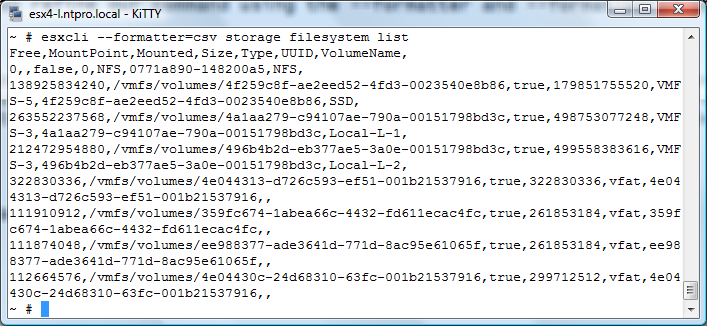
For a consistent look and feel for both local and remote CLI administration, the new “esxcli” command provides the ability to format the command output. Using the “--formatter” option, administrators can choose to have the command output formatted as XML, a key-value pair or a list of comma-separated values. The “esxcli” formatter enhances your ability to parse command output, helping to simplify scripting and improve report generation. In addition, you can specify which fields to include in the output. In the following example, we need to generate a report showing all the storage volume names with their free space. We start by running the storage filesystem list command, as follows: esxcli --formatter=csv storage filesystem list
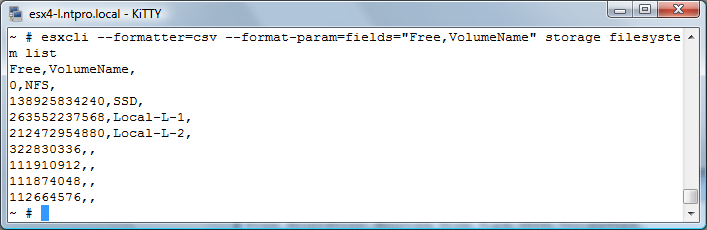
The output gives us the information we need, but it is very verbose, requiring the user to use the scroll bar to see the data for all the volumes. Because we need only a summary showing the volume name and free space, we can refine our command using the --formatter and --format-param options, as follows: esxcli --formatter=csv --format-param=fields="Free,VolumeName" storage filesystem list
More information about the ESXCLI command can be found at this link.
vSphere Replication is a replication engine that is part of SRM 5.0 and requires ESXi 5.0 and later, giving an alternative means of protecting and replicating virtual machines between sites. It is entirely managed within the SRM interface after initial deployment and configuration, and integrates with storage array–based replication to provide full coverage of the virtual environment.
The assumption is that there are multiple databases for vSphere Replication already configured for use, one at each site. In this evaluation guide, we will be using Microsoft SQL Server 2008 Express as a database, and using native SQL authentication for access. Workflow covered will be as follows:
When creating a database only use capitols even the username and the password need to be in capitols :-) Also use the fully qualified domain name as a database server, don't use IP-addresses. For configuring vCenter information, scroll down and notice the vCenter configuration information that is necessary. It is very important that the vCenter Server Address field is correctly populated. If you have used IP addresses for all site pairing activities, continue to use IP addresses in this location. If your SRM sites were paired with host names or fully qualified domain names, it is important that you do the same at this location as you did when pairing the sites. VRMS requires naming consistency throughout the process in order to function correctly. Enter the vCenter Server Address for the site you are currently using, which should be the protected site (Site A) vCenter. Click on Generate and Install an SSL Certificate after all the information is filled out.
When all the information is correctly filled in and the SSL Certificate is generated, click on the Save and Restart Service button. This will register the VRMS with vCenter and connect to the supplied database to run the initial configuration of vSphere Replication.
If VRMS has been successful communicating with vCenter and the database, it will return to the Configuration screen with a green message labeled Successfully saved the startup configuration. This may take a few minutes to return. Wait until a message is generated, whether it is the green success message or an error. If an error message is generated, re-examine both the database and vCenter information carefully and try again.
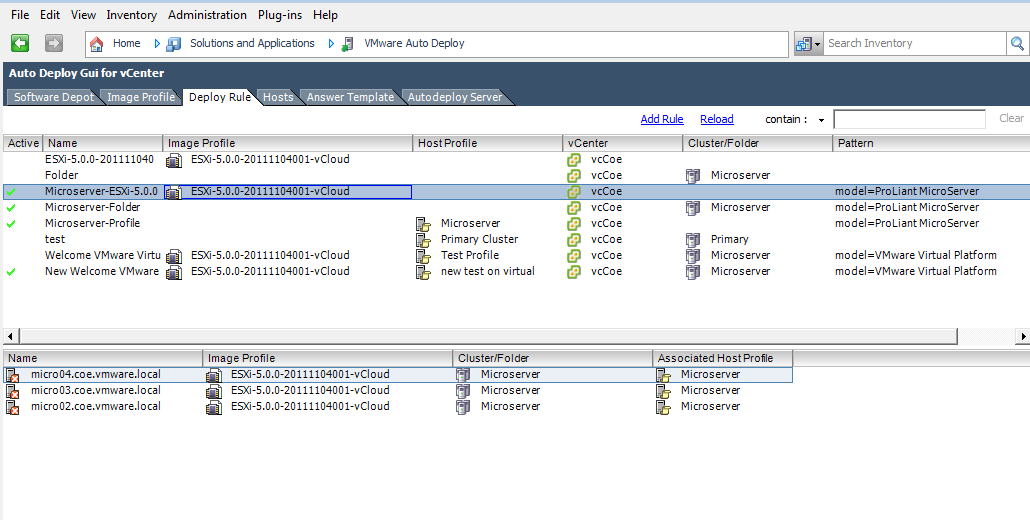
The Auto Deploy GUI is a vSphere plug-in for the VMware vSphere Auto Deploy component. The GUI plug-in allows a user to easily manage the setup and deployment requirements in a stateless environment managed by Auto Deploy. Some of the features provided through the GUI include the ability to add/remove Depots, list/create/modify Image Profiles, list VIB details, create/modify rules to map hosts to Image Profiles, check compliance of hosts against these rules and re-mediate hosts.